Try a change without losing the previous prose#
Revision history gives you a practical way to experiment with a chapter. Before a manual save, AI rewrite, or restore replaces chapter prose, ChapterOne preserves the current prose as a saved version.
This is useful when a rewrite loses a detail you liked, an edit becomes too aggressive, or you want to compare two approaches to the same scene. It runs locally and does not need a provider request.
Compare a saved version#
- Open a book and navigate to the chapter you want to review.
- Choose Revision history.
- Select a saved version.
- Compare the saved prose with the current chapter before deciding what to keep.
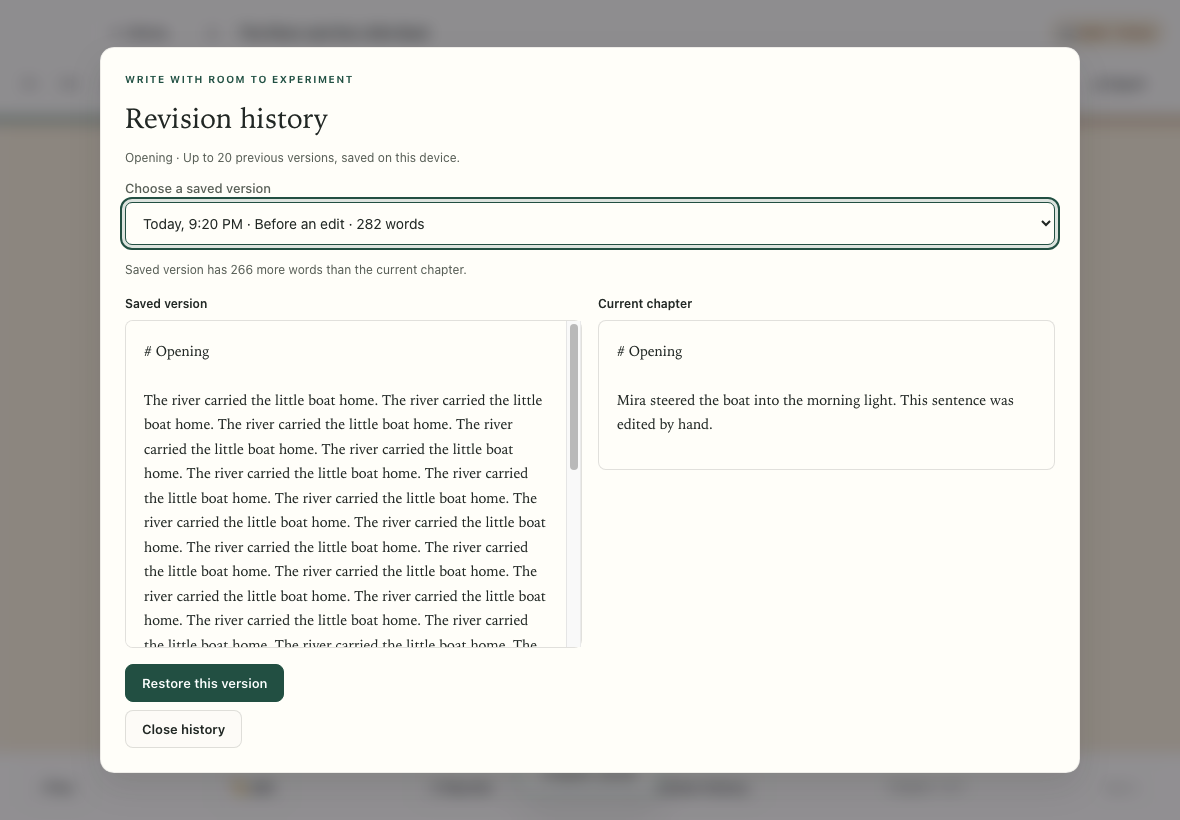
An example from the automated test library. Your own saved versions appear in the same comparison view.
History begins when a chapter is first changed with this feature available. Installing an update cannot reconstruct drafts that were overwritten before history existed.
Restore an earlier version#
Choose the desired version in Revision history, select Restore this version, then confirm with Restore version. The saved prose becomes the current chapter. The prose you are replacing is also preserved, so you can move back again while it remains within the retained history.
Restoring affects chapter prose only. It does not restore a previous book title, chapter title, outline summary, illustration, or audio file. Future narration uses the current text; a different text version may require new narration if matching cached audio is unavailable. Export again to create files containing the restored prose.
The app keeps up to 20 previous versions per chapter. Older entries are removed as new ones are added. Revision history is not a permanent archive or an independent backup, and deleting the book deletes its history.
Removing prose from the current chapter does not immediately erase it from history. Previous text remains in the book's unencrypted local JSON while retained. Manuscript exports include the current chapter, not the saved history. Deleting the book or clearing app data removes its app-managed history, but independent backups and exported copies remain.
Run a manuscript check#
Open Manuscript check in the reader before exporting or handing off a draft. The check works on saved manuscript data and runs locally without contacting an AI provider or consuming provider quota.
Use its findings as a practical cleanup list. Follow chapter-specific findings back to the affected text, make your edits, then run the check again. A paused or incomplete draft may have expected findings that will disappear as you finish the book.
The check looks for missing or empty chapters, unfinished draft status, missing book/author/chapter titles, repeated chapter titles or headings, duplicate long passages, possible draft markers such as TODO, TBD, FIXME, [Insert…], or Lorem ipsum, and unresolved image-search markers. A warning can be intentional text; inspect the evidence before changing it.
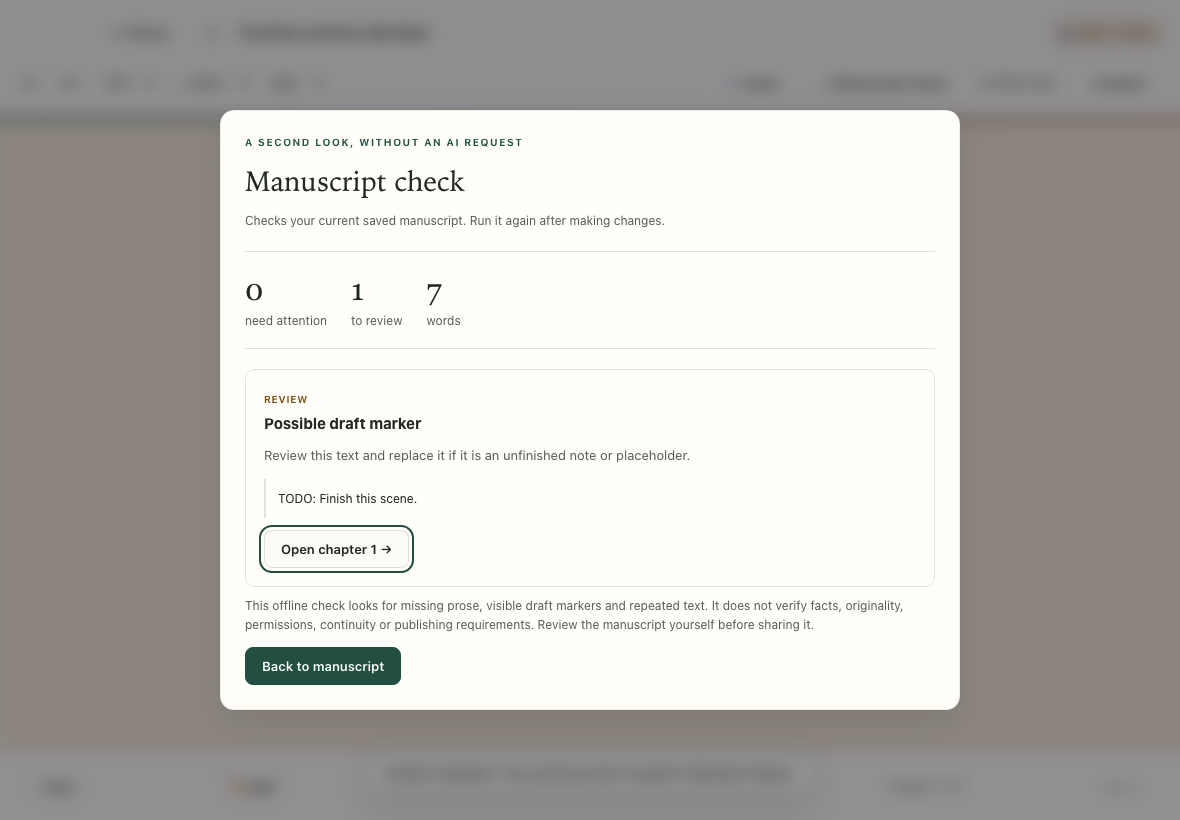
The check links a finding back to its chapter. This example uses synthetic test text.
Understand the limits of a check#
This is a deterministic manuscript check, not an AI critic, plagiarism detector, or fact checker. It cannot certify factual accuracy, narrative quality, copyright clearance, medical or legal correctness, child suitability, or print-platform acceptance.
Treat an issue-free check as one step in your review. You still need to read the complete book, verify important claims, inspect illustrations, and open the exported file in its destination application.
A useful revision routine#
- Read a complete chapter before changing it.
- Pick one purpose for the revision: clarity, pacing, evidence, dialogue, or structure.
- Save a manual edit or request a focused rewrite.
- Compare against history when you are unsure whether the change helped.
- Check neighboring chapters for continuity.
- Run Manuscript check and export a new review copy.